


Restoring an iPhone from a backup can feel confusing when you are dealing with a new device, a recently erased iPhone, a software problem, or the fear of losing important photos and personal information. The good news is that Apple provides several reliable ways to bring backed-up information back to an iPhone. Learning how to […]
Restoring an iPhone from a backup can feel confusing when you are dealing with a new device, a recently erased iPhone, a software problem, or the fear of losing important photos and personal information. The good news is that Apple provides several reliable ways to bring backed-up information back to an iPhone. Learning how to restore iphone from backup properly can help you recover your apps, settings, messages, photos, and other personal information without starting from scratch.
Table of Contents
A backup is essentially a saved copy of information from your iPhone that can be used when you replace, erase, lose, or damage a device. Apple supports backups through iCloud as well as backups stored on a Mac or Windows PC. The method you choose depends largely on where your backup is stored and what type of device you are restoring. Apple’s current guidance covers restoring from both iCloud and computer backups.
The restoration process is usually straightforward, but a few important details can make a major difference. You need to select the correct backup, use the appropriate Apple Account, maintain a stable connection, and understand what happens when the restore starts. It is also useful to know that some content may continue downloading after the initial restore has finished.
This guide explains how to restore iphone from backup from beginning to end. It covers iCloud backups, Mac backups, Windows backups, encrypted backups, new iPhones, erased iPhones, common errors, restoration times, and what you should do after your data returns. Whether you are completely new to iPhone backups or simply need a refresher, this guide gives you a practical path to follow.
What Does It Mean to Restore an iPhone from a Backup?
When you restore an iPhone from a backup, you are using previously saved information to recreate much of the setup and data that existed on your device at the time the backup was made. Instead of manually reinstalling and configuring everything, the restoration process uses a stored backup as the starting point.
An iCloud backup is stored in iCloud and can be selected during the iPhone setup process. A computer backup, on the other hand, is stored locally on a Mac or Windows PC and is restored through Apple’s computer software. Apple currently directs Mac users to Finder and Windows users to the Apple Devices app, although iTunes is still used in certain older setups.
Understanding this difference is one of the first steps in learning how to restore iphone from backup. You should first determine where your backup exists. If you regularly use iCloud Backup, you will probably restore through iCloud. If you previously connected your iPhone to a Mac or PC and created a local backup, you may choose the computer method instead.
Restoration is particularly useful when setting up a replacement iPhone. It can also be useful when an iPhone has been erased and you want to return it to an earlier state. However, restoring does not mean that every piece of information necessarily comes from exactly the same place. Some data may already synchronize through iCloud or another Apple service rather than being contained entirely within the backup itself.
Before You Restore Your iPhone from Backup
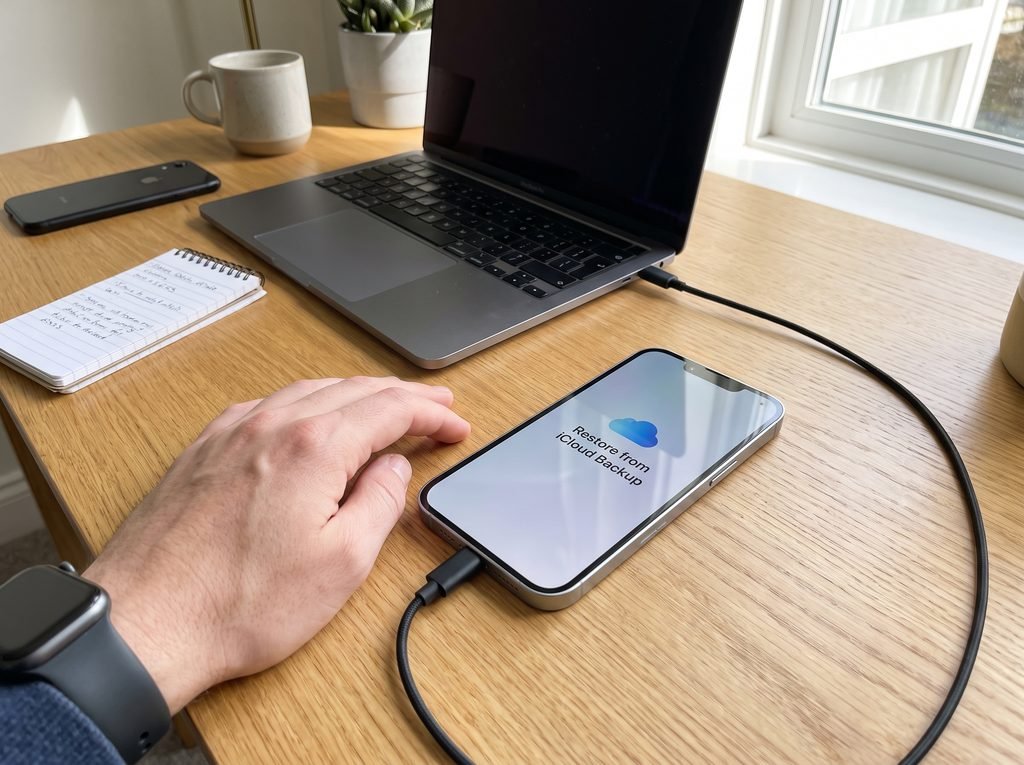
Before starting, take a moment to determine which backup you want to use. This simple step can prevent a lot of frustration later. A backup that is several weeks or months old may not contain the newest photos, messages, app information, or settings you expected to recover.
Apple recommends checking the date and size of available backups and selecting the most relevant one. During an iCloud restoration, those details can help you identify the right backup. The same principle applies to backups stored on a computer.
Your Apple Account credentials are also important for an iCloud restoration. You should know the account information associated with your iPhone and be able to sign in when requested. If the iPhone needs a newer version of the operating system before the backup can be restored, Apple may prompt you to update the software during the process.
It is also wise to connect the iPhone to power. Large backups can take time, and interruptions are best avoided. A stable Wi-Fi connection is particularly important for an iCloud restore because data must be downloaded from Apple’s servers.
When restoring from a Mac or Windows PC, make sure the computer is available throughout the process. Using a reliable USB cable and an up-to-date version of the required Apple software can reduce connection-related problems. Apple recommends updating the Mac or PC and keeping the Apple Devices app or iTunes current when troubleshooting restoration issues.
How to Restore iPhone from Backup Using iCloud
For many iPhone users, iCloud is the easiest restoration method because the backup does not need to be physically stored on a computer. The process takes place during iPhone setup, which makes it especially convenient when you have a new iPhone or a device that has just been erased.
To begin how to restore iphone from backup using iCloud, turn on the iPhone and look for the Hello screen. This is the initial setup screen displayed on a new or erased device. Follow the setup instructions until you reach the screen where you are asked how you want to transfer your apps and data.
At that stage, choose the option to restore from an iCloud backup. Apple’s current setup flow refers to this as “From iCloud Backup.” You will then be asked to sign in with your Apple Account. After signing in, the iPhone displays available backups that can be selected for restoration.
Look carefully at the date and size of each backup. Choosing the newest backup is often sensible, but “newest” should not automatically mean “best” if that backup was created after a problem appeared on the device. For example, if you are trying to recover a device because an issue started recently, an earlier backup may contain the healthier version of your setup.
Once you select the backup, the restoration process begins. The iPhone may display progress or guide you through additional setup instructions. If a message says that the iPhone needs a newer software version before it can restore the selected backup, follow the onscreen instructions to update the device. Apple specifically notes this possibility in its restore instructions.
After the initial restoration begins, keep the iPhone connected to Wi-Fi and power whenever possible. Some content can continue downloading after the main restoration stage. Apple recommends staying connected to Wi-Fi and power so the process can fully complete.
Why the iPhone Must Be Erased for an iCloud Restore
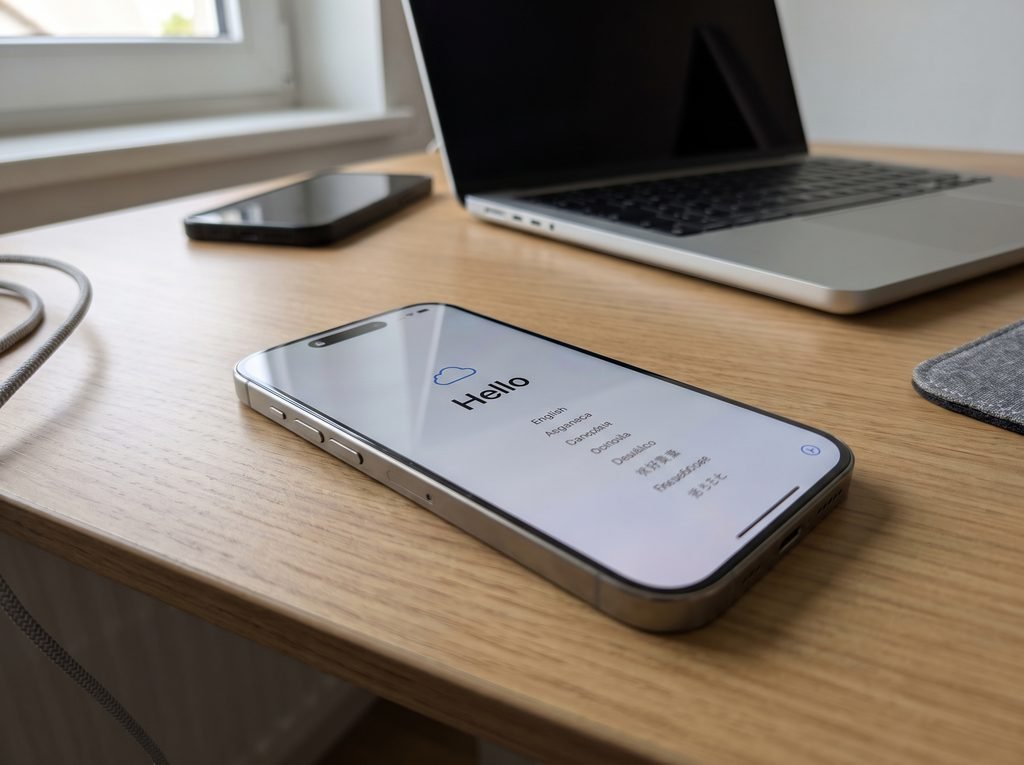
A common question about how to restore iphone from backup is why an iPhone that is already configured cannot simply load a previous iCloud backup over the existing setup.
Apple’s current instructions explain that if the device has already been set up, it must be erased before using the setup process to restore from an iCloud backup. That means you should be certain you understand what will be removed before proceeding with an erase.
This requirement exists because the restore process is designed around the initial setup experience. A backup is being used as the foundation for the device rather than simply being merged with every existing setting and file on an already-configured phone.
If the iPhone contains newer information that is not included in the backup you plan to use, erasing the device without first protecting that newer information could result in losing it. This is why checking backups before restoring is so important.
How to Restore iPhone from Backup on a Mac
Mac users have another option when their iPhone backup is stored locally on the computer. On modern versions of macOS, Apple uses Finder for iPhone backups and restoration. Older versions of macOS may use iTunes instead. Apple’s current support instructions distinguish between Finder on newer systems and iTunes on older versions such as macOS Mojave or earlier.
To start, connect the iPhone to the Mac using an appropriate cable. Depending on the setup, you may be asked to allow the accessory to connect, trust the computer, or enter the iPhone passcode. Apple’s current instructions say that after connecting the device, you can open Finder and select the iPhone in the Finder sidebar.
Once the iPhone appears in Finder, locate the restore option. The exact wording and screen layout can vary somewhat depending on the macOS version, but the general process involves selecting the device and choosing the option to restore it from a backup.
When the backup list appears, carefully check the dates and choose the backup you want. If the backup is encrypted, the Mac will require the encryption password before its information can be restored.
This makes it extremely important to remember the password used to encrypt a local backup. Apple explains that encrypted backups can protect certain information, but the password is required to use the backup. Without that password, the encrypted backup cannot be recovered in the normal way.
Restoring a Backup Made on an Older Mac
If you have a Mac running an older version of macOS, the restoration process may involve iTunes rather than Finder. Apple states that iTunes is used for Macs running macOS Mojave or earlier, while newer systems use Finder.
The basic concept remains similar. Connect the iPhone, open the appropriate Apple software, select the device, locate the restore option, choose the desired backup, and enter the password if the backup is encrypted.
If you are uncertain about which macOS version your Mac is running, you can check the operating system information before beginning. Using the correct application is important because the location of the backup and restoration controls depends on the computer environment.
How to Restore iPhone from Backup on Windows
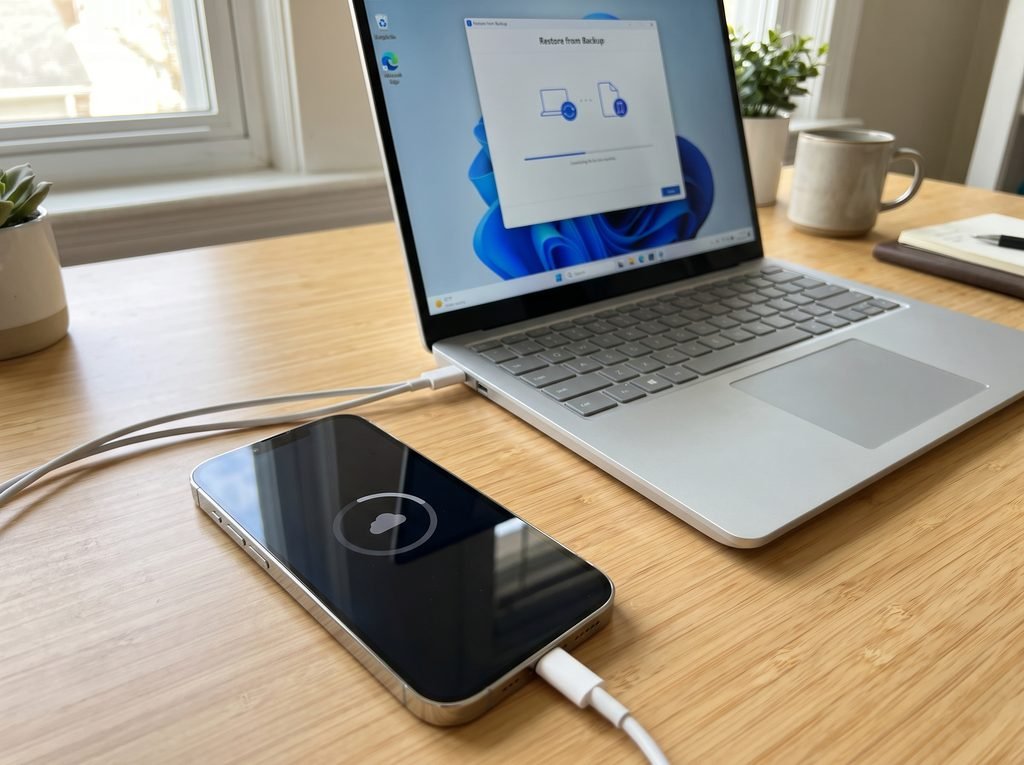
Windows users can also restore an iPhone from a computer backup. Apple’s current Windows workflow centers on the Apple Devices app. If the Apple Devices app is not available in a particular setup, iTunes may still be used.
Start by connecting the iPhone to the Windows PC with a USB cable. If Windows or the iPhone asks you to trust the computer or enter the device passcode, follow the onscreen instructions. The device should then appear inside the Apple Devices app or iTunes.
In the Apple Devices app, select the iPhone and look for its general settings and backup controls. When restoring an existing backup, select the restore backup option, review the available backups, and choose the most relevant one.
With iTunes, Apple’s instructions place the restore command under the device summary area. You select the connected iPhone, choose the Summary section, and then select “Restore Backup.” If the backup is encrypted, iTunes asks for the password before continuing.
Windows users should also avoid disconnecting the iPhone during the restoration process. A stable cable connection is essential, especially when a large amount of information is being transferred from the computer to the device.
How to Restore iPhone from Backup to a New iPhone
One of the most common situations where people search for how to restore iphone from backup is when moving to a new iPhone. Instead of rebuilding the phone manually, you can use a previous iCloud or computer backup as part of the setup process.
When you first turn on the new iPhone, you should see the Hello screen. Follow the setup instructions until you reach the section for transferring apps and data. Apple provides options for moving information from iCloud and from a Mac or PC, depending on your circumstances.
When restoring from a computer backup, Apple instructs users to connect the new device to the computer that contains the previous backup. You then open Finder, Apple Devices, or iTunes, select the new iPhone, choose the restore option, and select the correct backup based on its date and size.
If you use an encrypted computer backup, you will need its password. Once restoration is complete, Apple recommends keeping the iPhone connected to Wi-Fi and power when possible because content stored in iCloud, including certain apps, photos, and music, may continue downloading automatically.
Restore from iCloud During New iPhone Setup
An iCloud backup can be particularly useful when the previous iPhone is unavailable. Apple’s iCloud transfer guidance explains that personal data and purchased content can be transferred to a new device using an iCloud backup even when the previous device is not nearby.
During setup, you sign in with the appropriate Apple Account and select the iCloud-based transfer or restore option when prompted. As the process continues, the iPhone downloads information associated with your backup and account.
The amount of time this takes depends on factors such as the amount of data and the network connection. A phone with a large photo library and many applications may require considerably more time than a device containing only a small amount of backed-up information.
What Happens After You Restore Your iPhone?
Understanding what happens after the main restore is helpful because your iPhone may not look completely finished immediately. You might see apps appearing gradually, photos downloading, or content becoming available over time.
This does not necessarily mean the restore failed. Apple notes that after transferring or restoring data, content stored in iCloud can continue downloading automatically when the iPhone remains connected to Wi-Fi and power.
The first priority should be confirming that the information you care about most is present. Check your contacts, messages, photos, notes, calendar information, and important applications. Some services may require you to sign in again, particularly when security or account authentication is involved.
It is also normal to spend a little time allowing the phone to settle after restoration. Large app libraries, photo collections, and cloud-synchronized content may continue appearing in the background.
Instead of assuming that everything is missing because it is not visible immediately, give the device sufficient time to finish downloading and syncing while connected to a dependable Wi-Fi network.
How Long Does It Take to Restore an iPhone from Backup?
There is no single restoration time that applies to every iPhone. A small backup may complete relatively quickly, while a large backup can require much longer.
The amount of information being restored is one major factor. A backup containing years of photos, videos, messages, applications, and settings naturally requires more data transfer than a relatively small backup.
Internet speed also matters for an iCloud restore. If the connection is slow, unstable, or heavily congested, the process can take longer. A computer restore can also be affected by the speed of the storage drive, the quality of the USB connection, and the size of the backup.
Apple recommends keeping the device connected to Wi-Fi and power during the process, particularly when using an iCloud backup.
Rather than focusing on an exact number of minutes, pay attention to whether the process is progressing. A long restore is not automatically a failed restore. Problems become more concerning when the device repeatedly displays an error, becomes disconnected, or remains stuck without visible progress for an unusually long period.
Why Is My iPhone Not Restoring from Backup?
Several problems can prevent a backup from restoring correctly. In many cases, the cause is something simple, such as an outdated operating system, connection issue, insufficient time, or incorrect backup credentials.
Apple recommends making sure the Mac or PC is up to date and that the Apple Devices app or iTunes is current when troubleshooting computer backup and restore problems. Apple also recommends checking the connection, restarting devices, and trying another computer in certain circumstances.
For iCloud restoration, a stable internet connection is particularly important. If Wi-Fi keeps disconnecting, the download process can become unreliable. Moving closer to the router or switching to a more stable network can sometimes help.
Another possible issue is software compatibility. Apple notes that a restore may prompt you to update the iPhone if the backup requires a newer software version.
The selected backup may also be the problem. If an old backup is damaged or otherwise unavailable, you may need to try another backup.
What to Do If the Backup Is Not Showing
If you expect an iCloud backup to appear but cannot find it, start by checking that you are signing in with the Apple Account associated with the backup.
If you have multiple backups, carefully review the list rather than assuming that the first visible option is the one you need. Apple specifically recommends looking at the date and size of each backup when choosing which backup to restore.
For computer backups, make sure you are using the same Mac or PC where the backup was created, unless the backup has been transferred to another computer. The device should also be properly recognized by Finder, Apple Devices, or iTunes.
Apple’s current documentation explains that connected iPhones should appear in Finder on modern Macs and in the Apple Devices app on Windows. If the device does not appear, the problem may be related to the cable, trust relationship, software, or connection.
What If Your iPhone Is Already Set Up?
This is an important part of how to restore iphone from backup because many users begin the process after the phone has already gone through setup.
For an iCloud backup restoration through the standard setup process, Apple says the iPhone must be erased if it has already been set up. The erase returns the device to the beginning of the setup process, where you can choose to restore from the backup.
Before erasing a working iPhone, make sure you understand what information is currently stored on it. Any new information that exists only on the current device and is not synchronized or backed up could be lost.
This is why restoration planning matters. You should not erase a device simply because an older backup exists. First determine what you are trying to recover and whether the backup actually contains the information you need.
Encrypted Computer Backups Explained
Encrypted backups are especially important because they can contain protected information that a standard local backup may not contain in the same way.
Apple’s backup instructions state that encrypting a local backup requires you to create a password. Apple also warns that this password must be kept safe because there is no way to recover the encrypted backup without it.
If you are restoring an encrypted computer backup and receive a password prompt, enter the exact password used when that backup was created. Guessing repeatedly is not a good strategy because it can waste time without solving the underlying issue.
For future backups, use a password that you can securely remember or store in a trusted password manager. The goal is to balance strong protection with practical recoverability.
What Information Can Be Restored?
A backup can contain a broad range of device information, but it is important to understand that not every type of information is necessarily restored in exactly the same way.
Apple distinguishes between backup data and information that is already synchronized through services such as iCloud. That means some information may appear because it is being synchronized to the device rather than because it was copied directly from the backup.
This distinction explains why a restored iPhone may continue downloading content after the core restore has completed.
Apps can also behave differently depending on how they store and synchronize their information. Some applications may restore their presence on the phone while requiring the app to download updated content or asking you to sign in again.
For that reason, after learning how to restore iphone from backup, it is equally important to understand that restoration is the beginning of the recovery process rather than always the final step.
How to Restore iPhone from Backup Without Losing Important Data
The safest way to approach a restoration is to think about what information you need most. Photos, messages, contacts, notes, documents, and application data can be especially valuable.
Do not assume that the existence of a backup automatically means every recent change has been preserved. The timing of the backup matters. A backup can only restore information that was included or otherwise synchronized at the appropriate time.
If your previous iPhone still works, it may be wise to create or verify a recent backup before changing devices. Apple provides iCloud and computer-based backup methods for this purpose.
When dealing with a computer backup, check its date before selecting it. Apple specifically recommends verifying backup dates and sizes during restoration.
Taking a few extra minutes to confirm the correct backup can prevent the disappointment of restoring a device and discovering that the information you wanted was never included.
How to Restore iPhone from Backup When the Old iPhone Is Gone
Losing the original iPhone does not necessarily mean the backup is useless. One of the advantages of iCloud backup is that it is stored remotely rather than only on the original physical device.
Apple explains that an iCloud backup can be used to transfer personal data and purchased content to a new device even when the previous iPhone is not nearby.
This is one reason maintaining current backups is so valuable. If your old iPhone has been lost, damaged beyond use, or replaced, the backup can become the bridge between your old device and the new one.
The most important requirements are access to your Apple Account, an available backup, and a suitable internet connection. Once the new iPhone reaches the correct setup screen, you can select the available iCloud backup and follow the restoration instructions.
How to Restore iPhone from Backup After a Factory Reset
A factory reset removes the existing information and settings from the iPhone. After the reset, the device returns to the setup process.
This makes a factory-reset iPhone suitable for restoring an iCloud backup through the initial setup flow. Apple specifically describes restoring an iCloud backup from the Hello screen and then selecting the restore option from the apps and data stage of setup.
A factory reset should not be treated casually, especially when there are important files on the device. Always understand what will be removed before beginning an erase.
Once the reset is complete, follow the setup screens carefully instead of rushing through them. The backup restore option appears as part of this setup journey, making it important to select the correct transfer method.
How to Restore iPhone from Backup Using a Computer When the Phone Is Disabled
A disabled iPhone creates a more complicated situation because normal access to the device may be restricted. In some cases, restoring the device may require using a computer to erase and reinstall the software before restoring information from an appropriate backup.
The distinction between a normal backup restore and a factory software restoration is important. Apple describes factory restoration through a computer as a process that erases the device and installs the latest software.
After the device is prepared and returned to the setup stage, an appropriate backup can then be used according to Apple’s restore procedures.
If the iPhone does not appear on the computer, start with the basics. Check the cable, ensure the Mac or PC software is current, restart the devices, and follow Apple’s troubleshooting guidance.
Common Mistakes to Avoid When Restoring an iPhone
One of the most common mistakes is choosing a backup without checking its date. A backup may look valid but be too old for your needs. Always compare the dates and sizes of available backups before making a selection.
Another mistake is assuming that the restoration is complete the moment the main setup screen disappears. Some iCloud content can continue downloading afterward. Apple recommends keeping the device connected to Wi-Fi and power so cloud-based content can continue returning to the phone.
Using an unreliable cable can also cause problems during a computer restore. A stable physical connection is especially important when moving a large amount of data.
Users also sometimes forget the password for an encrypted local backup. This can prevent the backup from being restored, which is why Apple emphasizes storing the encryption password safely.
Finally, avoid erasing an existing iPhone before determining exactly what the backup contains. If you are not sure whether recent information has been backed up, investigate first.
How to Check Whether the Restore Was Successful
After restoring your iPhone, begin by checking the information that matters most to you.
Open Photos and see whether your expected images are available. Check Contacts to make sure important names and numbers have returned. Review Messages, Notes, Calendar, and other essential services. Open several frequently used applications to confirm that they are present and functioning.
Do not panic if some apps appear later than others. A restored iPhone may continue downloading content after the main restoration stage.
Also review your Apple Account settings and make sure you are signed in correctly. Certain applications and services may request authentication again for security reasons.
If everything important is returning and the phone continues to download or synchronize normally, the restoration is likely progressing as expected.
iCloud Restore vs Computer Restore: Which Is Better?
There is no universal winner between iCloud and computer restoration. The better option depends on how your backup was created and what resources you have available.
iCloud is convenient because you do not need the original computer. You can restore to a new or erased iPhone through the setup process as long as the required backup is available in iCloud.
A computer backup can be useful when you prefer a local copy or when you already have a reliable backup stored on a Mac or Windows PC. Apple supports Finder on modern Macs and the Apple Devices app on Windows, with iTunes remaining relevant in certain older configurations.
The most important point is not choosing the method that sounds better. It is choosing the method associated with the backup you actually have.
Can You Restore an Older Backup?
Yes, when multiple backups are available, you may be able to choose an earlier backup rather than always using the newest one.
This can be useful when a problem was introduced recently. For example, if a software issue or unwanted change occurred after an older backup was created, restoring the older backup may help you return to an earlier device state.
Apple’s restoration instructions specifically tell users to examine the date and size of each backup before choosing which one to restore.
However, an older backup also means potentially losing newer information that was not present at the time the backup was made. Choose carefully and understand the trade-off before starting.
Why Keeping Regular Backups Matters
The easiest restoration is the one you never have to panic about. Regular backups create a safety net for unexpected situations such as loss, theft, hardware failure, accidental deletion, or device replacement.
Apple recommends backing up an iPhone because a backup provides a copy of your information that can be used if your device is replaced, lost, or damaged. Apple supports both iCloud and computer backup methods.
A good backup routine also makes upgrading to a new iPhone much easier. Rather than manually reconstructing every setting and downloading everything from memory, you can use an existing backup as the foundation for the new device.
Think of a backup as an insurance policy for your digital life. You may not notice its value every day, but when something goes wrong, having a recent and accessible backup can save significant time and reduce stress.
How to Make Future iPhone Restores Easier
The best way to make future restoration easier is to establish a consistent backup habit. You should know whether you rely mainly on iCloud, a computer, or both.
If you use computer backups, keep track of the computer where your backups are stored. For encrypted backups, securely store the password and avoid using a password that you are likely to forget.
It is also helpful to keep your iPhone, Mac, PC, and related Apple software updated. Apple’s troubleshooting guidance specifically recommends keeping the relevant software current when backup or restoration problems occur.
When upgrading to another iPhone, give yourself enough time to complete the transfer instead of trying to rush the process. Keep the devices powered and connected as recommended, and allow additional time for cloud-based content to download.
A little preparation before the restore can make the actual process much smoother.
Frequently Asked Questions About How to Restore iPhone from Backup
Can I restore an iPhone from iCloud without a computer?
Yes. An iCloud backup can be restored during the setup process of a new or erased iPhone. Apple’s current instructions say to reach the apps and data transfer stage, select the iCloud backup option, sign in to the Apple Account, and choose the relevant backup.
Do I have to erase my iPhone before restoring an iCloud backup?
If the iPhone has already been set up, Apple says you need to erase its content before using the standard setup process to restore from an iCloud backup.
Can I restore an iPhone from a Windows PC?
Yes. Apple supports restoring computer backups through the Apple Devices app on Windows. iTunes can also be used in supported configurations.
Can I restore an iPhone from a Mac?
Yes. Modern Mac systems use Finder for iPhone backup restoration, while older macOS versions may use iTunes.
What if my computer backup is encrypted?
You need the encryption password to restore an encrypted backup. Apple warns that encrypted backups cannot be recovered without the password.
Why are my apps still downloading after the restore?
Some content stored through iCloud can continue downloading after the initial restoration or transfer. Keeping the iPhone connected to Wi-Fi and power can help the process continue.
Can I choose an older iCloud backup?
When multiple backups are available, you can choose a backup based on its displayed date and size. This allows you to select the backup that is most relevant to your situation.
What if my iPhone does not appear on my computer?
Check the cable and connection, make sure the computer software is updated, and follow Apple’s troubleshooting guidance. Restarting the iPhone and computer can also help. Apple recommends these checks when a device cannot be backed up or restored through a computer.
Final Thoughts on How to Restore iPhone from Backup
Learning how to restore iphone from backup becomes much easier when you first identify where your backup is stored and then follow the appropriate Apple restoration path. iCloud is generally convenient for restoring a new or erased iPhone without relying on the original computer, while Mac and Windows backups provide a local restoration option.
The key is preparation. Check the date and size of your backup, make sure you have access to your Apple Account when necessary, keep your device powered, maintain a stable connection, and remember the password if you use an encrypted computer backup. Apple’s current restoration instructions emphasize these practical details because they can make the difference between a smooth recovery and an unnecessary troubleshooting session.
Remember that restoration can take time, particularly when a large amount of information is involved. The main process may finish before every iCloud-based item has returned to the device. Give your iPhone time to reconnect, synchronize, reinstall apps, and download content while connected to Wi-Fi and power.
Most importantly, do not wait until your iPhone fails before thinking about backups. A current backup is one of the simplest ways to protect your photos, messages, settings, and other important information. Apple provides iCloud and computer backup options so users can maintain a recovery path when replacing, losing, or repairing a device.
Take Control of Your iPhone Data Today
Your iPhone contains years of photos, conversations, contacts, documents, app information, and personal settings that can be difficult or impossible to recreate manually. Knowing how to restore iphone from backup gives you a practical way to recover that information when a phone is replaced, erased, damaged, or unexpectedly stops working.
The best time to check your backup is before you actually need it. Verify that your preferred backup method is working, make sure recent information is being protected, and understand whether your backup is stored in iCloud or on a computer. That small amount of preparation can make your next upgrade or unexpected recovery dramatically easier.
When you are ready to restore an iPhone, take your time, choose the correct backup, follow the setup instructions carefully, and keep the device connected to power and a stable network. With the right backup available, restoring an iPhone does not have to be a stressful experience. It can be a straightforward process that gets you back to the information and settings you rely on every day.




One thought on “How to Restore iPhone from Backup: The Complete Step-by-Step Guide”