

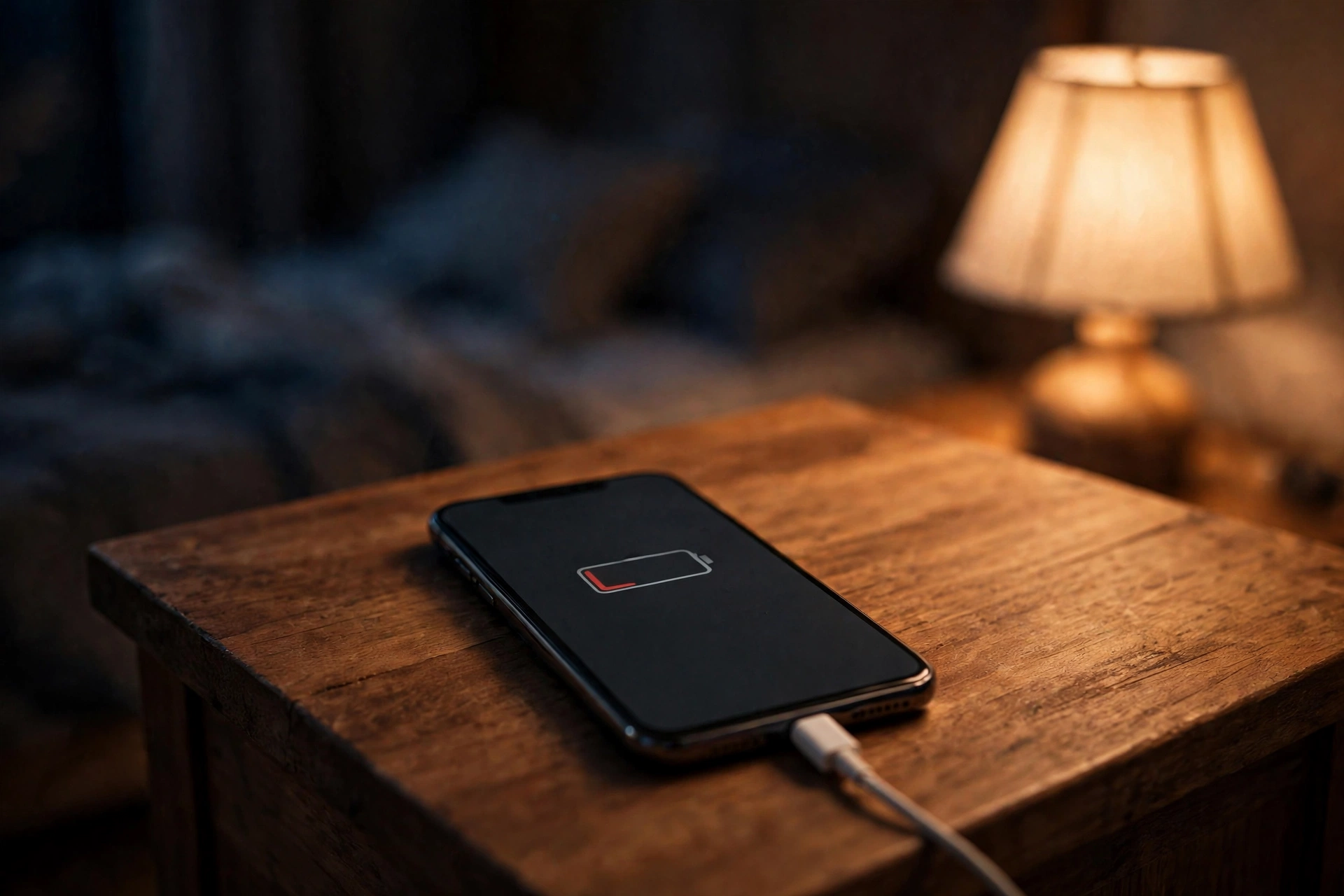
For years, I had the same maddening experience: I’d plug my phone in at night at, say, 20%, and wake up to find it fully charged… or I’d forget to plug it in and wake up at 7% with a 9 a.m. meeting looming. Both situations were bad, but the one that really annoyed me […]
For years, I had the same maddening experience: I’d plug my phone in at night at, say, 20%, and wake up to find it fully charged… or I’d forget to plug it in and wake up at 7% with a 9 a.m. meeting looming. Both situations were bad, but the one that really annoyed me was when I did leave it charging all night and noticed my battery health dropping month after month. That’s when I started digging into how to preserve phone battery overnight properly — not just survive the night, but actually protect the battery for the long haul.
Here’s what I learned after testing settings, reading battery researchers, and grilling two repair-shop techs: keeping your phone at 100% charge for seven or eight hours straight, night after night, genuinely accelerates battery wear. But there are easy fixes — most of them are settings you flip once and forget. Here are the 11 that made the biggest difference for me. These are the habits that taught me how to preserve phone battery overnight for real.
Table of Contents
1. Turn on optimized charging (the single most important setting)
Both Android and iPhone now have a feature — called Optimized Charging or Adaptive Charging — that pauses charging at 80% and only finishes the last 20% shortly before your alarm. This is the number one way to preserve phone battery overnight, because lithium-ion batteries degrade fastest when held at 100% for hours. If you’re wondering how to preserve phone battery overnight, start here — this one setting does most of the work.
On iPhone: Settings > Battery > Battery Health & Charging > turn on Optimized Battery Charging. On most Android phones: Settings > Battery > Adaptive Charging (Samsung: Settings > Battery > Battery protection). Turn it on once and forget it. My phone now sits at 80% most of the night and tops up just before I wake.
2. Stop using cheap, ultra-fast chargers overnight
That 65W fast charger is amazing when you need a quick top-up before heading out. Overnight, though, it’s completely unnecessary — and fast charging generates more heat, which is the real battery killer. When learning how to preserve phone battery overnight, switching to a slower charger was a small change that mattered more than I expected.
I now use an old 5W–10W charger on my nightstand. It charges slowly, stays cool, and my phone reaches full right around when I wake up. If your phone sits at 100% for hours anyway, there’s zero benefit to charging it fast.
3. Charge to 80–85%, not 100%
If your phone doesn’t have optimized charging (or you don’t trust it), pull the plug when you see 80%+ if you’re still awake, or use a smart plug with a timer that cuts power after a couple of hours. Battery researchers consistently find that keeping lithium-ion cells in the 20–80% range dramatically extends their lifespan.
I realize this sounds annoying, but combined with optimized charging it’s automatic. The goal of learning how to preserve phone battery overnight isn’t to babysit the charger — it’s to set things up so the battery never cooks at 100% while you sleep.
4. Take the thick case off (heat is the enemy)
Phones warm up while charging. Thick cases trap that heat. Several nights a week, I now slip the phone out of its bulky case before bed. Heat accelerates the chemical reactions that degrade batteries — even a few degrees matters over hundreds of charge cycles.
This matters especially if you charge on your bed or under a pillow (please don’t — that’s also a safety issue). Charge on a hard, flat surface where air can circulate, like a nightstand or desk.
5. Turn on airplane mode or at least disable background app refresh
If you’re like me and sometimes forget to plug in, your phone can lose 10–15% overnight just sitting there, scanning for Wi-Fi, syncing email, and letting apps refresh in the background. To preserve phone battery overnight even when unplugged, turn on airplane mode before bed. My phone now loses only 1–2% over eight hours.
If you need calls to come through, airplane mode is too aggressive — instead, disable Background App Refresh (iPhone) or restrict background activity for the worst offenders (Settings > Battery > check usage stats, then restrict the apps that ran all night). Social media and weather apps were my biggest overnight drainers.
6. Turn off always-on display
Always-on displays are convenient, but they’re a constant small drain — and worse, they’re pointless while you’re asleep. I turned mine off and now use a scheduled bedtime mode that kills it from 11 p.m. to 7 a.m.
On iPhone: Settings > Display & Brightness > Always On Display > turn off or schedule. On Samsung: Settings > Lock screen > Always On Display > set it to “Tap to show” or schedule it. It’s one of those settings that costs you nothing and quietly saves a few percent every night.
7. Let bedtime mode handle Do Not Disturb + battery saving
Both platforms have bedtime/sleep focus modes that do multiple things at once: silence notifications (fewer screen wakes), dim the display, and on some phones, enable stricter battery saving. I set up a Sleep focus that runs on my schedule, and it also triggers optimized charging timing on iPhone.
This was a “set once, benefit forever” move. If you’re figuring out how to preserve phone battery overnight with minimal effort, automating it through sleep focus is the laziest effective option.
8. Lower the screen brightness before bed (and use dark mode)
If you use your phone in bed before sleep, crank the brightness down manually — auto-brightness often stays higher than necessary in a dark room. I also switched everything to dark mode, which saves real power on OLED screens (most modern phones use OLED, where black pixels are literally off).
These micro-habits add up. Nobody’s battery died because of one bright evening, but hundreds of nights of 100% brightness scrolling adds heat and cycle wear that you can avoid for free.
9. Update your software (battery bugs are real)
I’ve had two phones where a specific OS version drained battery noticeably faster at idle, and both were fixed by the next update. App developers also push fixes for background-drain bugs regularly. Part of knowing how to preserve phone battery overnight is just staying current.
Check Settings > Software Update monthly, and in the App Store/Play Store, turn on auto-updates. One bad app version can undo a whole night of optimized settings — I once had a podcast app download episodes on loop all night and woke up to a hot, 40%-drained phone.
10. Check battery health and replace when it matters
If your phone is two-plus years old and the battery health is under 80%, no settings will save you — a worn battery simply holds less charge and drains faster. On iPhone: Settings > Battery > Battery Health & Charging shows Maximum Capacity. Android: Settings > Battery > Battery Health (on newer versions), or use the device’s diagnostics.
A battery replacement at a repair shop typically costs far less than a new phone and instantly restores overnight endurance. Knowing how to preserve phone battery overnight includes knowing when the battery itself is the problem — I replaced my old phone’s battery and it felt like a new device.
11. If you must charge fast, keep the phone cool and ventilated
Some nights you’ll need a quick charge before bed. That’s fine — just don’t bury the phone under a pillow or charge it inside a closed drawer. Put it on a hard surface, ideally with the case off, and away from heating vents. Fast charging plus trapped heat is the worst combination for battery longevity.
I keep my fast charger in the living room for daytime top-ups and only the slow charger on the nightstand. Physical separation removed the temptation entirely.
The Bottom Line
Learning how to preserve phone battery overnight isn’t complicated — it’s mostly about heat and the 100% ceiling. Turn on optimized charging, use a slow charger, give the phone some airflow, and let airplane or sleep mode silence the overnight drain. Do those four things and your battery will age far more gracefully than mine did before I figured this out. That’s the entire playbook for how to preserve phone battery overnight — no apps, no gadgets, just smarter defaults.
For more device-care tips, I wrote about speeding up an old machine in my guide to speeding up a slow Windows 11 laptop — same philosophy: a few smart settings changes beat buying new hardware.
For the official guidance, Google’s own battery-life documentation covers adaptive charging and battery-saving settings in detail.
Frequently Asked Questions
Is it bad to charge your phone overnight?
Charging overnight isn’t inherently dangerous with modern phones, but leaving a lithium-ion battery at 100% for 6–8 hours every night accelerates long-term degradation. To preserve phone battery overnight properly, enable optimized/adaptive charging so the phone pauses at 80% and only finishes charging before you wake up. Once this is on, you’ve handled the biggest part of how to preserve phone battery overnight.
Should I unplug my phone at 80%?
Yes, when convenient — battery researchers find that keeping charge between roughly 20% and 80% extends lithium-ion battery lifespan significantly. Overnight, optimized charging settings automate this for you, so you don’t have to wake up and unplug.
Does airplane mode really save battery overnight?
Yes. With airplane mode on, my phone typically loses just 1–2% over eight hours, versus 10–15% with radios, background sync, and app refresh active. If you need to receive calls, use sleep focus mode instead — it silences notifications and reduces screen wakes without cutting calls entirely.
Is fast charging bad for overnight charging?
Fast charging generates more heat than slow charging, and heat is the main driver of battery wear. Since there’s no benefit to charging quickly while you sleep, use a slower (5–10W) charger overnight and save the fast charger for daytime top-ups.
Why does my phone lose battery overnight even when plugged in?
If your phone loses charge while plugged in overnight, check that the cable and charger are working properly, remove any thick case that traps heat, and look for a misbehaving app in battery usage stats — a buggy app downloading or syncing all night can out-drain a slow charger.
How do I check my phone’s battery health?
On iPhone, go to Settings > Battery > Battery Health & Charging to see Maximum Capacity. On newer Android phones, check Settings > Battery > Battery Health. If capacity is below 80%, consider a battery replacement — no settings tweak can restore a chemically worn battery.



2 Comments